

Adding members
When creating a new team
As a final step in creating a new team, you can add users. It is possible to add users in Office 365 JAMU and external members via email address. External members will receive an invitation and if their address is not associated with a Microsoft account, they are listed on the Microsoft account creation purely for login purposes.

Anytime
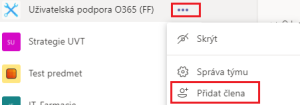
Only the team owner can add a member directly. Click on the three dots next to the team name and select “Manage Team”.

Click on “Add Member”.

It is possible to add users in Office 365 JAMU and external members via email address. External members will receive an invitation and if their address is not associated with a Microsoft account, they are listed on the Microsoft account creation purely for login purposes.

Adding a guest – detailed procedure
Using the code
Potential members (JAMU employees and students) can be sent or published a code to join the team themselves. This is useful if there are many potential members. However, anyone who gets the code can join the team. It is not possible to add guests in this way. The code must be created by the team owner. This option cannot be used to add non-JAMU people and guests.
Creating code
- Click on the three dots next to the team name and select “Manage Team”.

- Go to the “Settings” tab.

- Expand “Team Code” and click “Generate”. Forward the generated code to potential members.

Using the code
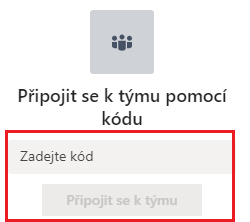
- To use the code to join a team, click “Join or create a new team” at the top of the MS Teams window in the Teams section.

- Enter the code and click “Join Team”.
Using the link
For potential members – employees and students of JAMU – it is possible to post a link to the team. If someone who is not a member tries to use it, they can request to be added. The team owners then have the option to approve or deny the request.
Click on the three dots next to the team name and select “Get link to team”. Copy the link you created and share it with potential members.

The owner may then accept or reject the applications individually or in bulk.

At the request of another team member
This option can be used by team members who do not have the role of owner. Click on the three dots next to the team name and select “add member”.
Change the user role
When forming a team
You can set the owner role for an inserted team member.

Anytime
Click on the three dots next to the team name and select “Manage Team”.

You can set the role of each member.


