

Educational videos:
- Freshmen – Tips on the Information System not only for incoming students
- Distance learning – Tips, tools and guides for distance learning
- Getting Started with the Information System – Information System Tips not only for new teachers
These instructional videos were created at Masaryk University, so some things are slightly different at our school. The main difference is logging in to Microsoft 365 services – at JAMU you log in with učo@post.jamu.cz and a secondary password, or for some teachers with the email příjmení@jamu.cz and the associated password .
The most ideal procedure for creating a class in MS Teams seems to be:
Educator: create a team using this procedure:
 01 Go to Teams and in the “Teams” tab select “Join or create a new team”
  02 Click on “Create Team”
  03 Select “Class” or “Other” – “Class” seems to be the best option for best communication, it will be preset with certain attributes that you will appreciate in the future, e.g. automatic notification of scheduled meetings
  04 Enter a title – typically the name of the subject or group and optionally a description
  05 Skip adding members for now, manual adding is inappropriate as not everyone has an account already activated (typically freshmen) and manual tracking can lead to errors or you may not be able to track down the user at all, email the students in the next step.
Educator: now go around the students to join the team, there are 2 options – Code (slightly more laborious for students) and Link (slightly more laborious for you – you approve new applications)
Educator: code procedure:

In Teams in a team (we got to this screen by completing the previous procedure), click on the three dots next to the team name and then on “Manage Team”

In the team administration click on “Settings” and then on “Team code” and then on “Generate”

A code will be generated which you can copy to your clipboard
Now in IS, email your students and send them this code and invite them to use it to join your course. And if necessary, send them a link to this procedure
Once the students use the link, you have them on your team and you can work, so you are DONE.
Educator: procedure for reference:

In Teams in a team (we got to this screen by completing the previous procedure), click on the three dots next to the team name and then click on “Get link to team”

A link will be generated and copied to the clipboard

Once the link has been sent to students, once students have used it, you will see in Teams the applications to join the team that you accept, these notifications will also be emailed to you
Now, in IS, email your students and send them this link and invite them to use it to join your course. And, if appropriate, send them a link to this procedure
Once the students use the link, you accept their application and you have them on your team and you can work, so you are DONE.
Student: using the link:

Once you receive the link from the educator, click on it, the following prompt will appear, click on “Join” once the educator approves your connection you are DONE
Student: using code:

In the Teams tab, click on “Join or create a new team”

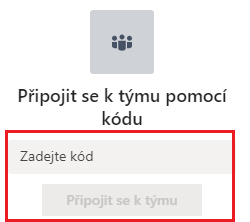
enter the code sent to “Join the team using the code” and click on “Join” and you are DONE
You must be logged in with your JAMU account, not your personal account.
How do I know I am logged in with my JAMU account?
- Click on the user icon in the top right corner with your mouse to display the currently logged in user.
- try for example in MS Teams at the top in the “Search” field to search using the surname of a teacher or student of JAMU, if you start to get search results, you are logged in with the correct account.
In Teams (the link to the full tutorial is above), create a class subject team, exactly as it is in:
How to create a new subject/class team in MS Teams?
Create a team according to the procedure and if it is a small group of students, enter them manually, if it is a larger number of students, then use the procedure
Create a code to the team or a link to the team.
in the “Teacher’s Notebook” – make sure you have the correct faculty and semester selected in the upper right corner.
https://is.jamu.cz/auth/ucitel
then select the subject or subjects for which you want to organize online lessons for that topic and use the send letter to send out this code or link to the team to the students.
Whether to choose a code or a link is up to you.
For the code, the student must launch Teams and then click “Join or create a new team” at the top of the MS Teams window in the Teams section to use the code to join a team.

- Enter the code and click “Join Team”.
At the link, the student just needs to click on the link and apply for membership. You then approve each student’s membership application:

For both methods, I recommend that you also send students a link to this procedure:
https://is.jamu.cz/auth/do/jamu/2490278/2490346/FAQ.qwarp?prejit=26708
and even better, a link to the entire O365 service guide at JAMU (where this procedure is also available)
https://is.jamu.cz/auth/do/jamu/2490278/2490346/FAQ.qwarp?prejit=35418
Important
Everyone, i.e. you and students, must have External Services IS JAMU enabled, i.e. an account in O365.The procedure for enabling it is in the mentioned signpost:
https://is.jamu.cz/auth/do/jamu/2490278/2490346/FAQ.qwarp?prejit=35418
Distance learning opportunities processed by MU
The ZOOM app can also be used for online learning
Link to the application website (in English only)