

Access the thesis archive:
In this signpost you will find everything you need to work with ZP.
You can here:
- Enter the archive of the student’s final thesis using the link “Final thesis archive” for each final thesis that is accessible to you – ATTENTION – the student must have the thesis handed in and accepted at the study department – you will receive an information email about this
- Upload a ZP report – “Upload as a file” for a given student – this link is again accessible the moment the student has submitted the work and the study department has taken it over.
- if you have selected the correct period in the upper right corner, then you have links to the evaluation of your student’s courses in the given semester, including courses related to the ZP and accessible to you as the head of the ZP.
For a detailed description, see the help: https://is.jamu.cz/auth/napoveda/ucitel/zav_prace_uc
To upload testimonials, proceed as follows:Access the Supervisor application fromPersonal Administration or via the student’s personal page (My Student section). If you don’t see the student, check the header of the page for the correct term and faculty settings.Upload the assessment by creating itaccording to the template (see Managing thesis assessments) if your department uses them, or upload it as a file. To upload a file, click on “Upload as file” or in the thesis archive via the “Upload file” link.
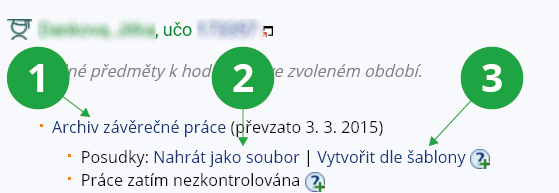
1 Access to the thesis archive.
2 Introduction of the assessment.
3 Create a testimonial according to the template.
In the form, leave the “I am the author of the file” box checked, select “Supervisor’s/opponent’s opinion” in the file type and then track the file on your computer. You can also edit the name of the uploaded file or add a description by clicking on “Add more information”, but this information is not mandatory. We recommend naming the file as testimonial_name or testimonial_uco.
Tip
You can replace the report you have put into the archive with a new version in “Supervisor” – “Final thesis archive” (delete the old file and put in a new report) if you find an error in the report – just be careful, you cannot change reports in the week before the defence.
In the Supervisor, enter the final thesis archive and then at the bottom of the page in the file overview, right-click on your report and select “Move to Trash” or select the file with the selection button and select “Move to Trash” again in the right menu
Manipulating the thesis archive can be done in the following cases:
- Student (author of the thesis) – the thesis has not been taken over by the study officer in the past or has been granted a three-day exemption for handling the archive.
- Supervisor/opponent – the final thesis, the reviews of which are uploaded by him/her, has been taken over by the study department and has not yet been evaluated.
- Authorized person with the right to s_teach – the thesis has not been graded or 180 days have not elapsed since its eventual acceptance.
- A person authorized to s_studium or d_su – can manipulate the archive at any time.
It can read files in the archive:
- Student (author of the work) – at any time, even if the archive has not yet been published.
- Head/opponent of the thesis – after the archive has been taken over by the study department, even if the archive has not yet been published.
- Other users – according to the school’s classification and the publication of the archive (see the question When is the student’s thesis published?).
Changes to the permissions for manipulating the thesis files (inserting a new file, taking over the thesis, etc.) are done in a few minutes.
Opinions can be in electronic format in MS Word (.doc or .docx), in text document format in OpenDocument ODF (.odt), in portable document format PDF (.pdf), or scanned in JPEG (.jpg) or BMP (.bmp) format.
If you are unable to insert the ZP report, there are possible reasons:
- You have not been assigned the necessary right. Contact the study department or another person in charge according to faculty practice.
- The final thesis has already been evaluated (in the archive you can see the date of the defence and the evaluation obtained).
- The student has more studies, i.e. more archives. Switch to the archive of the assessed work.
- If you have selected the correct archive, please contact the study department.
The supervisor is obliged to check the published work for plagiarism through the application in the JAMU IS.
Use the links:
Supervisor Final Thesis Archive
After the checks have been carried out, confirm the operation with the “Job Check Performed” button.
Tip: Check your work for plagiarism
To check your work for plagiarism, use the “egg to egg” icon in the File Manager. For a detailed procedure, see the Help Finding similar files in the File Manager
Wait for the study department
The final thesis can only be checked after the thesis has been accepted by the study department.