

You can access the room booking app via
Calendar Other schedules and reservations Room reservations
or
Teacher (Testing) Room Reservation
or
IS Reservation Book a room
You will receive an email informing you about the created, modified or cancelled reservation. If the room is set to be notified by email this information email is also sent to the person set.
Rooms where this is necessary are set up with a room manager who can edit/cancel bookings here, you will be notified by email of any such action.
here you will find a list of the rooms you have the right to book. These are rooms for which you are listed in the Contact Details or are marked with one of the attributes “May book”, “May book”, “May manage” or “May book”. and you fall within their values. You can use the quick filter box to filter the list of rooms.
The value of the “May book” attribute is the workstation ID. You can reserve such a room if you work (as an employee, teacher, PhD student or have the right with_reserve_mist) at the same workplace or its sub-workplace. The value of the attribute “May reserve. sc.” is a Group of people, typically employees of the workplace, or students in a program, specialization, or specific year.

To make a reservation, select the desired room (1) and day (2) and click “Book” (3).

Then select the desired time in the table (1) and add a comment (2) to the booked hours. By selecting the sharing option (3) you can enable others to book the time. Confirm the reservation by clicking on the “Book” button (4).
The table will only show you the times when reservations are allowed in the room.
You can find an overview of all your bookings in:
Calendar My Booking
The date by which rooms can be booked can be found at the bottom of the page in Additional Information. This restriction does not apply to those with the s_reserv_mist override for the selected faculty, who are able to reserve rooms outside of the date listed. In this case, you will need to change the interval of days displayed and look up the desired date. The restriction also does not apply if the room is marked with the “Non-teaching room” attribute. Such a room can be booked at any time from the current day for the period specified in the attribute value (months or years).
The application also checks for conflicts with unpublished schedules. Reservations cannot be entered if the “when to book” date is in a period when the schedule is not yet published. Persons with overriding rights may make reservations during this period, but ideally in consultation with the Faculty Scheduler.

Cancellation:

To cancel a reservation, select the room and day of the reservation and select “Cancel” in Operations. Events marked with a green circle can be cancelled. Click on the relevant cell in the table and confirm your choice with the “Cancel” button. You do not have the right to cancel bookings marked with a red arrow.
You can modify or cancel reservations or room reservations that you have entered and for which you are listed in the “May manage ucho” attribute.
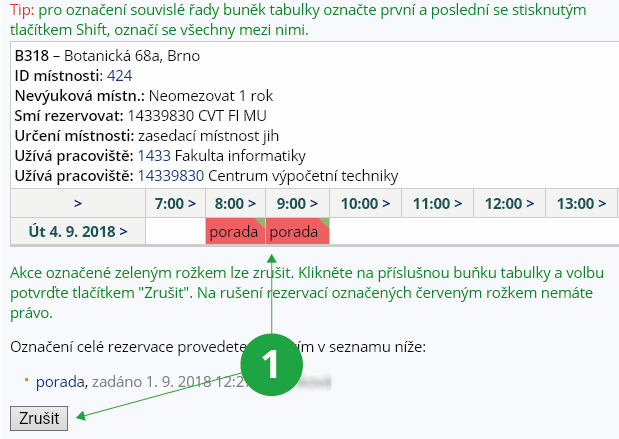
1 Mark the selected date and confirm your choice with the “Cancel” button.